The short version
- Build the workout once. Your watch tells you when to run, when to rest, and what zone to be in.
- Garmin: build it in the Garmin Connect app, send it to your watch, then start it from Training > Workouts.
- Apple Watch: build it right on your watch in the Workout app with Create Workout > Custom.
- Set up your heart rate zones first: here's how.
The Workout We'll Build
We'll use one of my favorite workouts: cruise intervals.
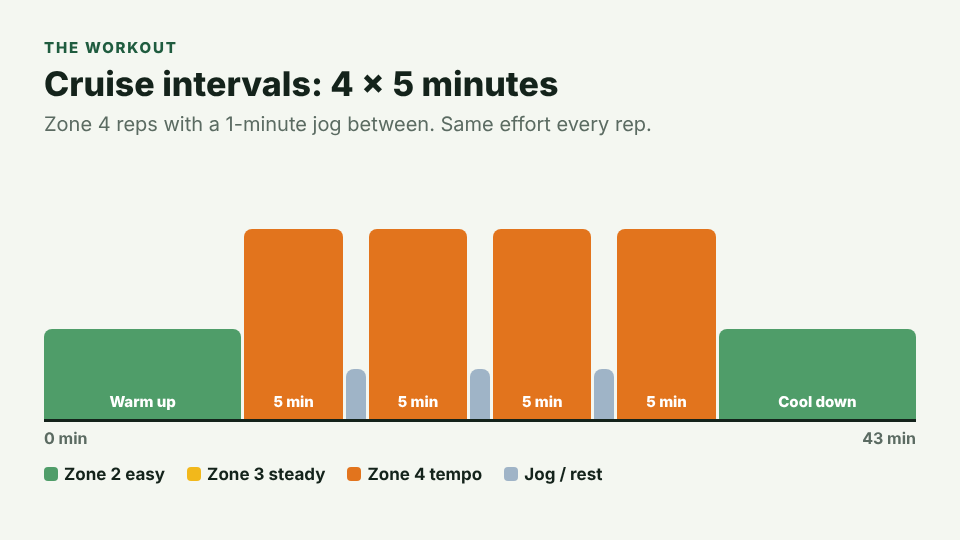
- Warm up: 10 minutes, Zone 2
- Run: 5 minutes, Zone 4
- Recover: 1 minute easy jog
- Repeat the run and recover 4 times
- Cool down: 10 minutes, Zone 2
New to this workout? Read Cruise Intervals Explained first.
On a Garmin
You build the workout on your phone, then send it to your watch.
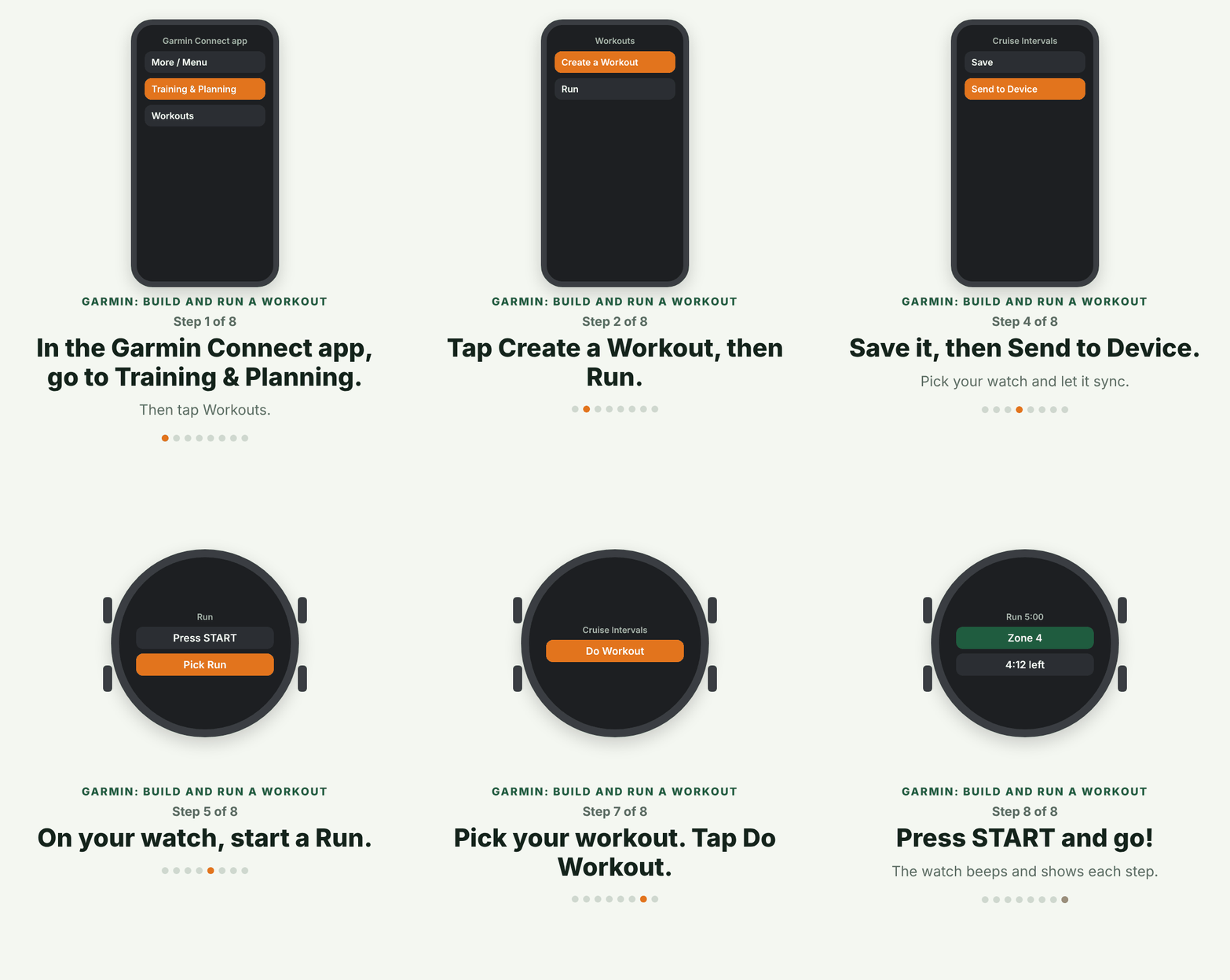
Drawings, not real screenshots. Button and menu names change a little from watch to watch.
Part 1: Build it in the Garmin Connect app
- Open the Garmin Connect app on your phone.
- Go to Training & Planning > Workouts.
- Tap Create a Workout, then pick Run.
- Set up your steps:
- Warm Up: 10:00, target Heart Rate Zone 2
- Run: 5:00, target Heart Rate Zone 4
- Recover: 1:00, no target
- Set the Repeat to 4 times
- Cool Down: 10:00, target Heart Rate Zone 2
- Tap Save and name it something like "Cruise Intervals."
- Tap Send to Device, pick your watch, and let it sync.
Part 2: Run it on your watch
- From the watch face, press START and pick Run.
- Open the options menu and go to Training > Workouts. (On some watches, hold MENU to find Training.)
- Pick your workout and select Do Workout.
- Press START and go.
Your watch will show each step, buzz when it's time to switch, and tell you if you're above or below your zone.
On an Apple Watch
You build the whole thing right on your watch.
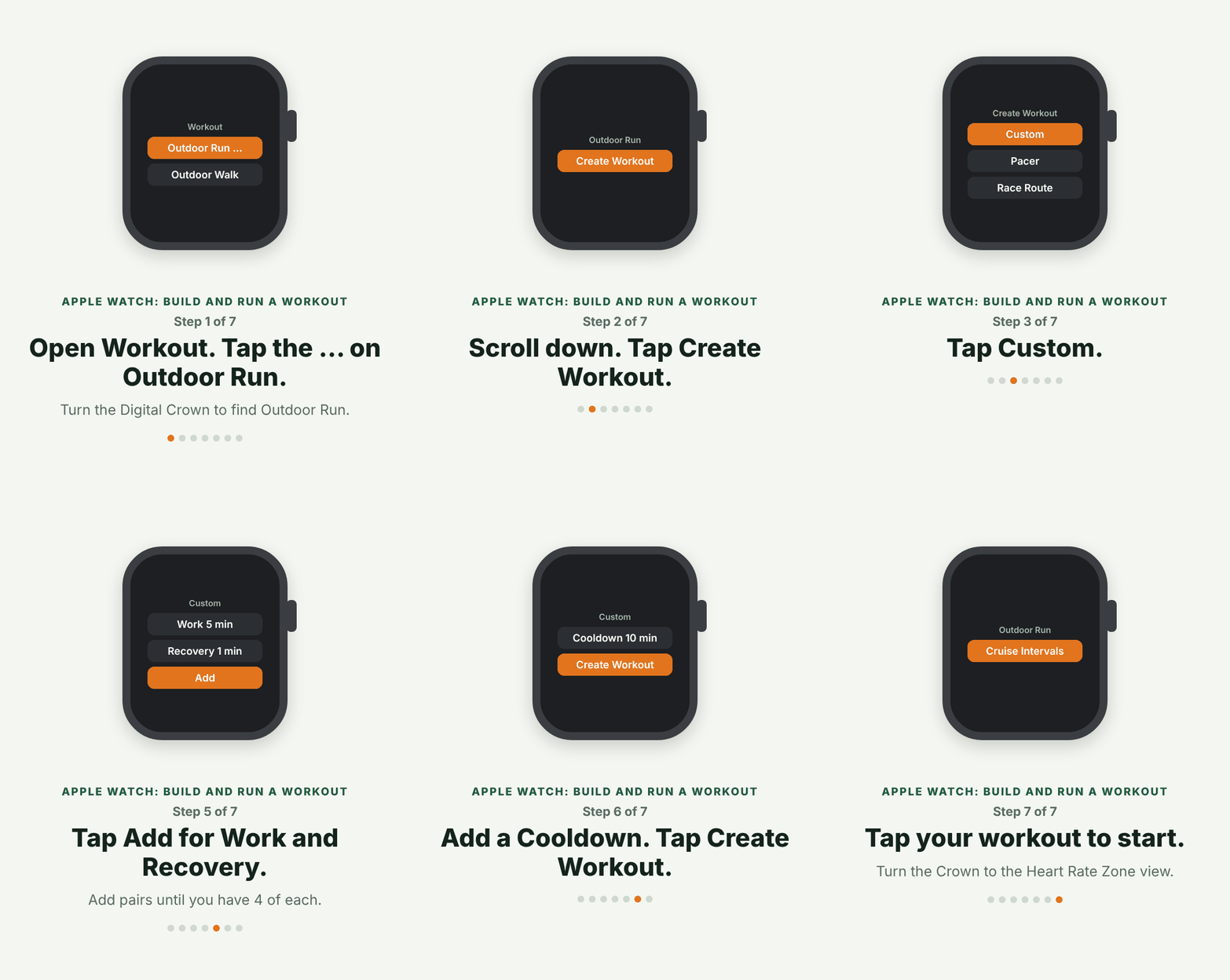
Drawings, not real screenshots.
Part 1: Build it
- Open the Workout app. Turn the Digital Crown to Outdoor Run.
- Tap the More button (the three dots) on Outdoor Run.
- Scroll down and tap Create Workout, then Custom.
- Tap Warmup, pick Time, and set 10 minutes.
- Tap Add, pick Work, then Time, and set 5 minutes.
- Tap Add, pick Recovery, then Time, and set 1 minute.
- Keep adding Work and Recovery until you have 4 of each.
- Tap Cooldown, pick Time, and set 10 minutes.
- Give it a name, like "Cruise Intervals," and tap Create Workout.
Part 2: Add a heart rate alert (optional, but great)
You can tell your watch to tap your wrist when you leave your zone. Before you start, tap the More button on your workout and look for Alerts. Add a Heart Rate alert and set it to Zone 4, or type in your Zone 4 numbers.
Part 3: Run it
- Open Workout and tap your new workout to start.
- Turn the Digital Crown to see your Heart Rate Zones view and the Up Next view, which shows what's coming.
Tips From Coach Noah
Your heart rate is slow to catch up. On the first rep, it might take two or three minutes to reach Zone 4. Don't sprint to make your watch happy.
Wrist heart rate isn't perfect. If the number jumps around or looks crazy, trust the talk test. A chest strap is more accurate if you want one.
Your watch is a tool, not a boss. If you feel awful, slow down. If you feel great, don't race it. Stick to the plan.
Charge it the night before. Nothing worse than a dead watch at 5:30 on a Wednesday.
Come Try It at Club
Bring your watch on a Wednesday night. We meet at 5:30 PM at the Garver Feed Mill main entrance. If you get stuck on the setup, ask. Somebody there has figured it out.
No one runs alone.