The short version
- Find two numbers: your resting heart rate and your max heart rate.
- We use heart rate reserve zones (also called the Karvonen method): 50, 60, 70, 80, and 90%.
- Garmin: your watch is NOT set up this way out of the box. Change "Based On" to %HRR.
- Apple Watch: it already uses heart rate reserve. You can type in the club's exact zones with Manual.
Step 1: Find Your Two Numbers
You need two numbers. That's it.
Your resting heart rate. This is how fast your heart beats when you're totally relaxed.
- Easiest way: your watch already tracks it. Garmin and Apple both show your resting heart rate.
- No watch? Right after you wake up, before you get out of bed, count your pulse for 30 seconds. Double it.
Your max heart rate. This is the fastest your heart can beat.
- Best way: look at the highest number you've seen at the end of a hard race.
- Quick way: 220 minus your age. It's a rough guess, not gospel, but it's a fine place to start.
For kids: please don't go out and sprint until you can't to "find your max." Use a race, or the quick way. Your coach can help.
Step 2: The Math (Your Watch Can Do This Part)
We use heart rate reserve. Your reserve is the space between your resting and max heart rate. It's your working range.
Using your reserve instead of just your max makes your zones fit you. Two people with the same max but different resting heart rates get different zones. That's the point.
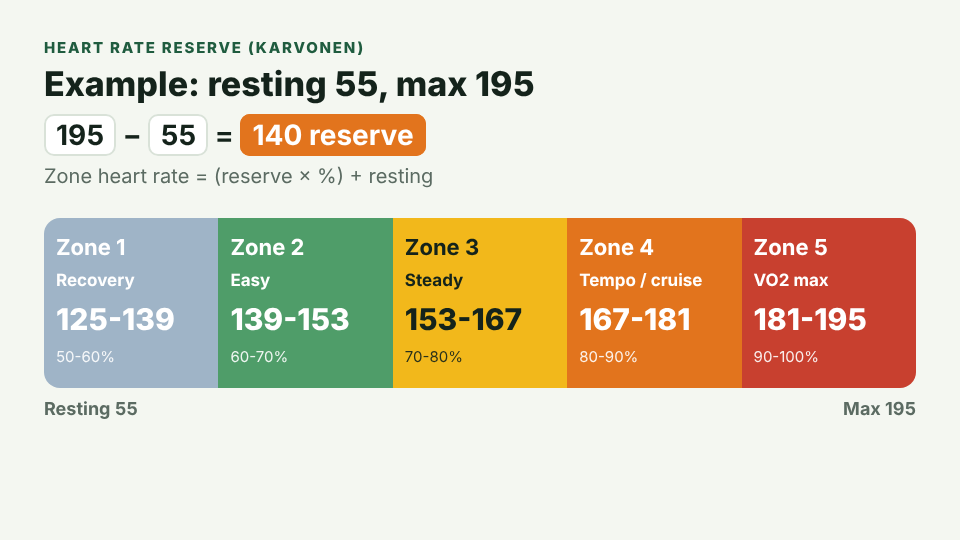
Here's the formula:
Zone heart rate = (reserve x percent) + resting heart rate
Example: resting 55, max 195.
- Reserve: 195 - 55 = 140
- Bottom of Zone 2 (60%): 140 x 0.60 = 84. Then 84 + 55 = 139
- Bottom of Zone 4 (80%): 140 x 0.80 = 112. Then 112 + 55 = 167
Here are the zones we use:
| Zone | % of heart rate reserve | Feels like | What we use it for |
|---|---|---|---|
| Zone 1 | 50 to 60% | Very easy | Recovery, walking |
| Zone 2 | 60 to 70% | Easy, full sentences | Most of your runs |
| Zone 3 | 70 to 80% | Short sentences | Steady state |
| Zone 4 | 80 to 90% | A few words | Tempo and cruise intervals |
| Zone 5 | 90 to 100% | Can't talk | VO2 max |
These are the same percentages Garmin uses for its zones. The difference is that we apply them to your heart rate reserve, not just your max.
Want the full explanation? I made a video on the Karvonen method on my YouTube channel, Boring Running.
Step 3: Set It Up on a Garmin
Heads up: Garmin does not use heart rate reserve by default. Out of the box, Garmin sets your zones as a percent of your max heart rate. You have to switch it.
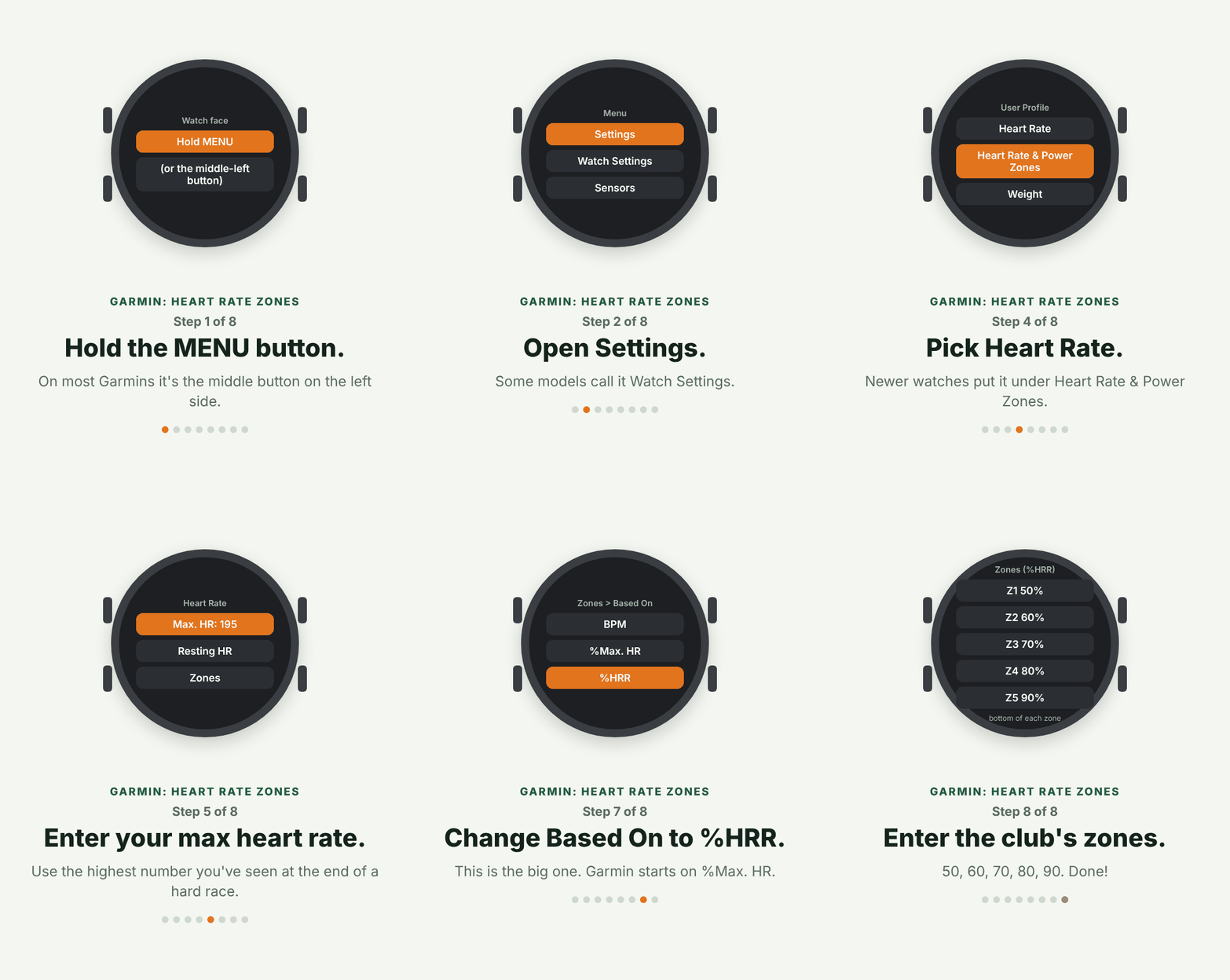
Drawings, not real screenshots. Button and menu names change a little from watch to watch.
- From the watch face, hold MENU. On most Garmins, that's the middle button on the left.
- Go to Settings (or Watch Settings) > User Profile.
- Pick Heart Rate. On newer watches it's under Heart Rate & Power Zones > Heart Rate.
- Pick Max. HR and type in your max heart rate.
- Pick Resting HR. Choose Use Average to let the watch use what it measures, or Set Custom to type your own.
- Go to Zones > Based On, and pick %HRR. This is the big one.
- Set the bottom of each zone: Zone 1: 50%, Zone 2: 60%, Zone 3: 70%, Zone 4: 80%, Zone 5: 90%.
You can also change all of this in the Garmin Connect app on your phone, under your watch's settings.
Bonus: Garmin lets you set separate zones for running. Look for Sport Heart Rate or Add Sport Heart Rate and pick Running. Use the same numbers.
Step 4: Set It Up on an Apple Watch
Good news: your Apple Watch already uses heart rate reserve. It builds your zones from your resting and max heart rate, and it updates them on the first day of every month.
If you're happy with that, you're done. If you want the club's exact zones, here's how to type them in.
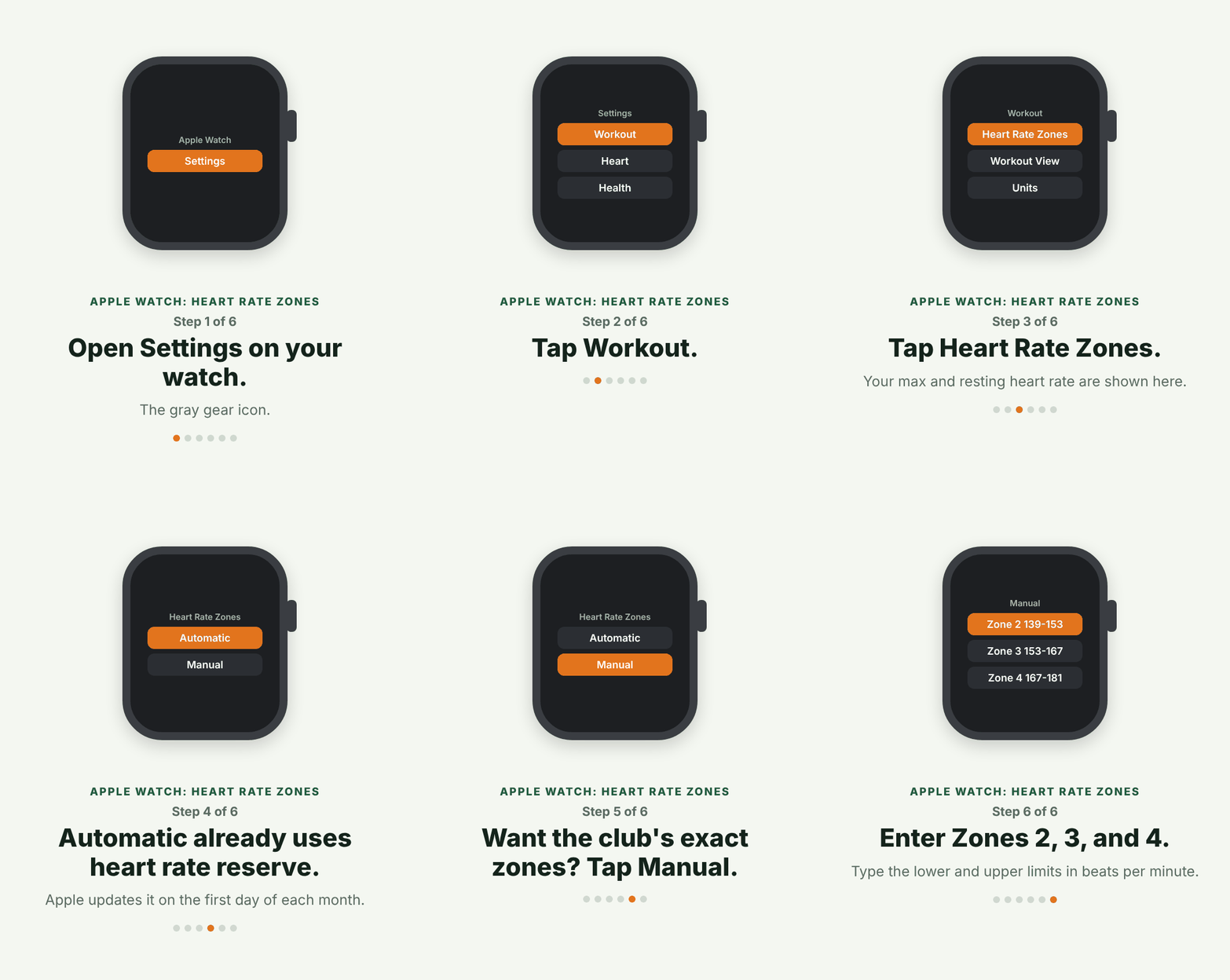
Drawings, not real screenshots.
- Make sure your birthday is in the Health app on your iPhone. Apple needs it to set up zones.
- On your watch, open Settings > Workout > Heart Rate Zones.
- Tap Manual.
- Tap Zone 2, Zone 3, and Zone 4, and enter the lower and upper limits in beats per minute. Use the math from Step 2.
You can do the same thing on your iPhone: open the Watch app, tap My Watch, then Workout > Heart Rate Zones > Manual.
During a run: turn the Digital Crown until you see the Heart Rate Zones view. It shows which zone you're in right now.
Step 5: Make Sure It Worked
Go for an easy run. Talk the whole time, or keep it so easy you could talk.
Most of that run should land in Zone 2. If your watch says you were in Zone 4 the whole time, something's off. Check your max and resting numbers again.
And remember: your watch is a tool, not a boss. If the number looks crazy, trust the talk test.
What's Next?
Now that your zones are set, put them to work: How to Do a Workout on Your Garmin or Apple Watch.
No one runs alone.